> ## Documentation Index
> Fetch the complete documentation index at: https://getkoala.com/docs/llms.txt
> Use this file to discover all available pages before exploring further.
# Slack
> Use the Koala app to get notified about new leads as soon as they express intent in your product.
### Installation
You must have an active account and project in [Koala](https://app.getkoala.com)
before proceeding. If you don't have an account,
[sign up for free](https://app.getkoala.com/signup).
Add to Slack
### Introduction
There are two ways that you can receive messages from Koala in Slack.
* Real-time notifications about intent via Slack Alerts
* Share an account to a channel
Each is discussed more in detail below.
### Real-time notifications about intent via Slack Alerts
If you'd like to automatically receive notifications whenever high-intent activities
happen, use Slack Alerts. The easiest way to get started is in the
[Slack Alerts tab](https://app.getkoala.com/goto/slack-alerts).
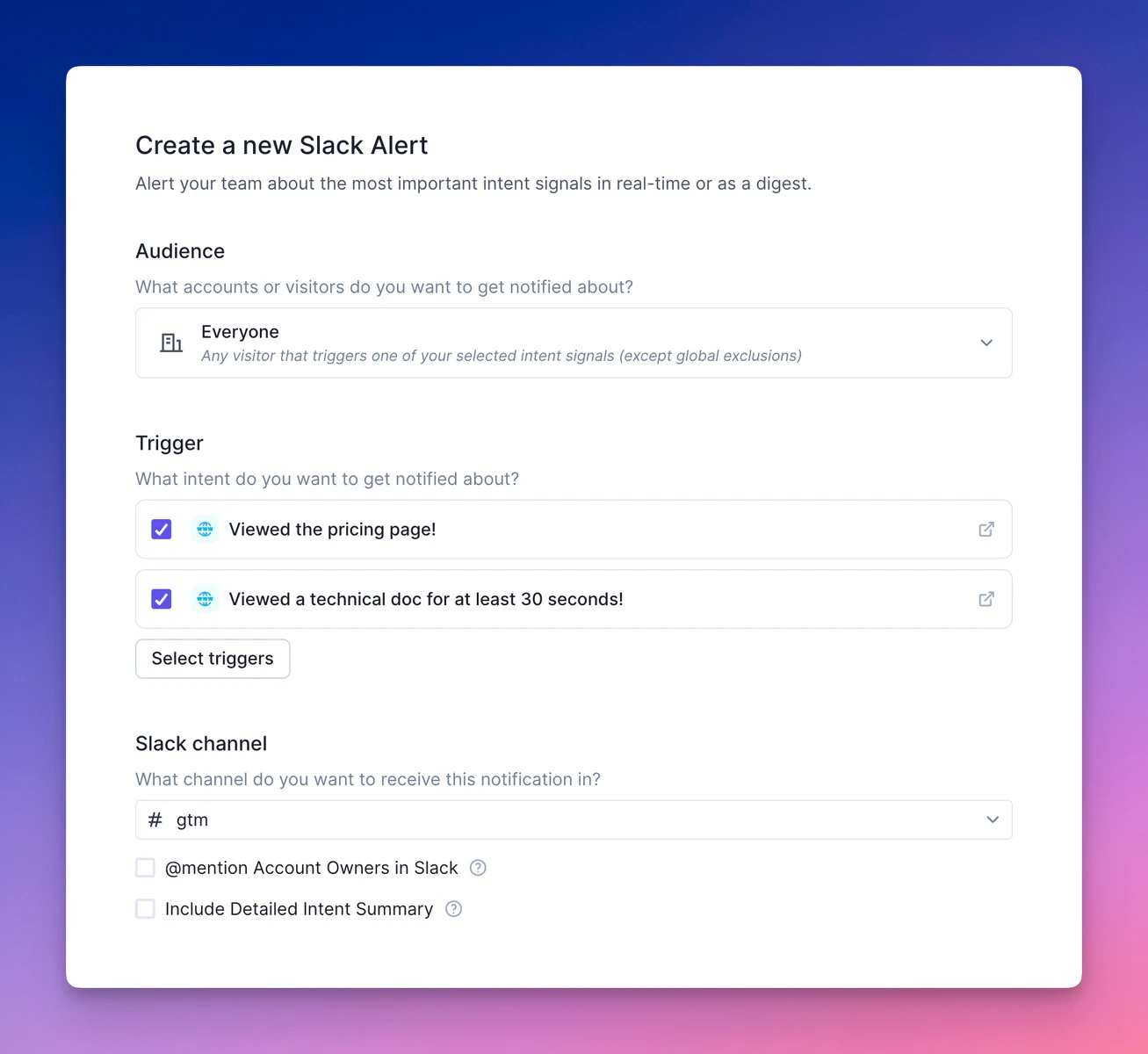
You can pick which **Intent Signals** you'd like to be notified about, and optionally specify an audience. You can send to any **existing public channel**, or create a **new public channel** inline. Here's how you configure it:
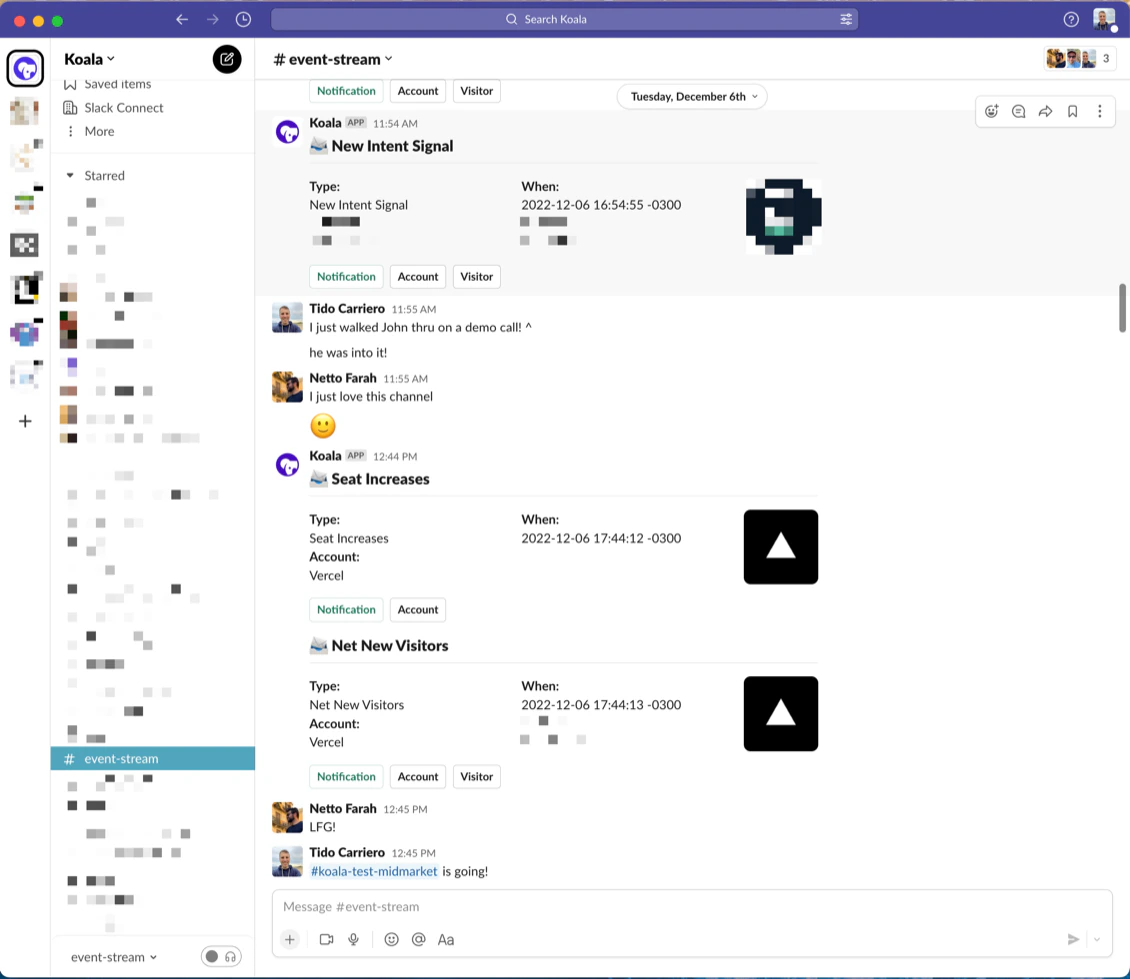
On the other side, once the intent is triggered, you'll get a notification in Slack:
### Share an account to a channel
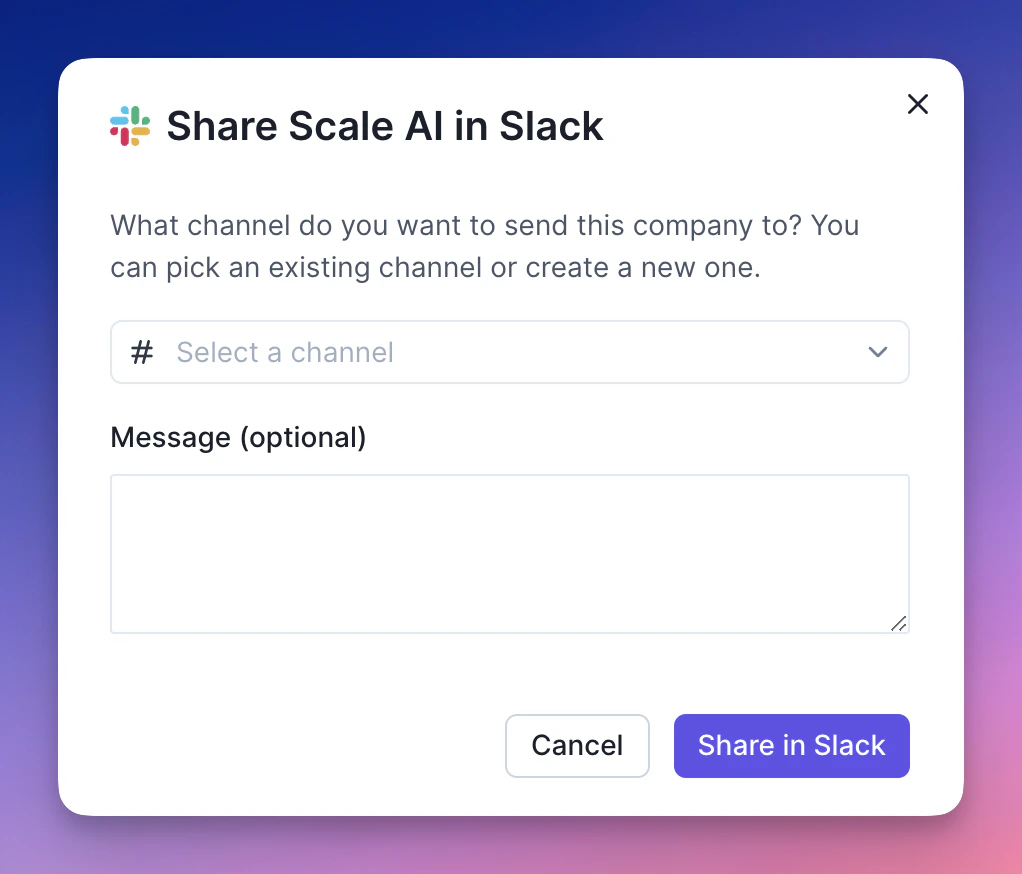
If you'd like to manually share an interesting account to start a discussion
with the team, you can easily share any account with any channel. Navigate to
any **account profile page** in Koala and look for the Slack icon at the top:
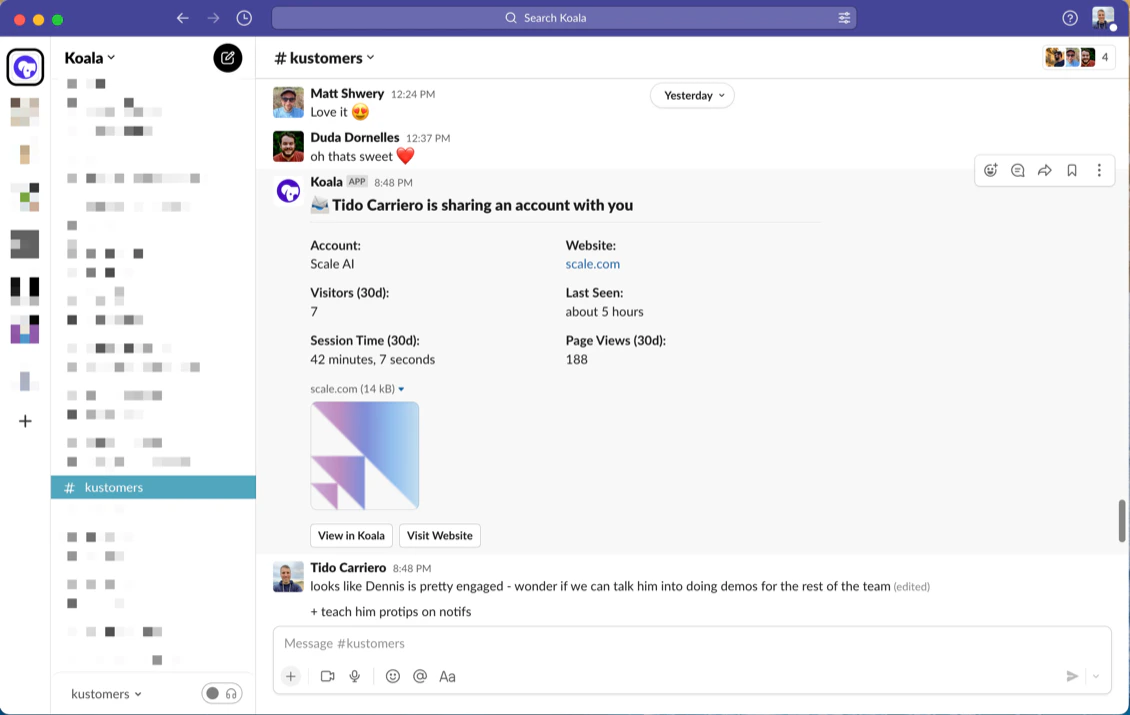
In the Slack channel, it will appear like this:
### Subscribe to specific audiences
You can also create Slack Alerts that notify you about intent for specific audiences. You can configure these directly from the Slack Alerts creation flow, or from an audience page.
To set one up, follow these steps:
* Select (or create) an audience [here](https://app.getkoala.com/goto/views)
* Once you have navigated to the audience, click the **"Slack Alerts"** button at the top of the page
* Configure the channel you'd like to send notifications to, and the Intent Signals you want to know about.
* You're all set! Now whenever a new company or person shows the intent you wanted to know about, you'll
get notified.
### Support
Having issues with the Slack integration? Email the Koala team with your
questions at [support@getkoala.com](mailto:support@getkoala.com)!
 On the other side, once the intent is triggered, you'll get a notification in Slack:
 ### Share an account to a channel
If you'd like to manually share an interesting account to start a discussion
with the team, you can easily share any account with any channel. Navigate to
any **account profile page** in Koala and look for the Slack icon at the top:
### Share an account to a channel
If you'd like to manually share an interesting account to start a discussion
with the team, you can easily share any account with any channel. Navigate to
any **account profile page** in Koala and look for the Slack icon at the top:
 In the Slack channel, it will appear like this:
 ### Subscribe to specific audiences
You can also create Slack Alerts that notify you about intent for specific audiences. You can configure these directly from the Slack Alerts creation flow, or from an audience page.
To set one up, follow these steps:
* Select (or create) an audience [here](https://app.getkoala.com/goto/views)
* Once you have navigated to the audience, click the **"Slack Alerts"** button at the top of the page
* Configure the channel you'd like to send notifications to, and the Intent Signals you want to know about.
* You're all set! Now whenever a new company or person shows the intent you wanted to know about, you'll
get notified.
### Support
Having issues with the Slack integration? Email the Koala team with your
questions at [support@getkoala.com](mailto:support@getkoala.com)!
### Subscribe to specific audiences
You can also create Slack Alerts that notify you about intent for specific audiences. You can configure these directly from the Slack Alerts creation flow, or from an audience page.
To set one up, follow these steps:
* Select (or create) an audience [here](https://app.getkoala.com/goto/views)
* Once you have navigated to the audience, click the **"Slack Alerts"** button at the top of the page
* Configure the channel you'd like to send notifications to, and the Intent Signals you want to know about.
* You're all set! Now whenever a new company or person shows the intent you wanted to know about, you'll
get notified.
### Support
Having issues with the Slack integration? Email the Koala team with your
questions at [support@getkoala.com](mailto:support@getkoala.com)!